

Encoding PHP Scripts for Version Flexibility
If you want one encoded PHP build to run across several PHP versions, I need to encode for the lowest version I support and include every newer version I plan to run. If I skip a version, the file will not run on that PHP version, even if the Loader is installed.
Here’s the short version:
- I check my source code before encoding.
- I confirm syntax and features match my full support range, such as PHP 8.0 to 8.3.
- I encode for each PHP version I plan to support.
- I verify the right SourceGuardian Loader is installed on every server.
- I test the encoded build in dev, staging, and production-like setups.
A few facts matter right away:
- SourceGuardian stores different bytecode for each selected PHP major version.
- If a file was not encoded for a PHP version, I can hit Error code 8.
- If the Loader is too old for the encoded file, I can hit Error code 10.
- On Linux, SourceGuardian notes minimum GLIBC levels of 2.14 on x64 and 2.17 on aarch64.
- Large integers above 2^31 can be converted to floats during encoding.
So the job is simple: match source support, encoding targets, Loader versions, and server tests before release. That is the whole process in one line.
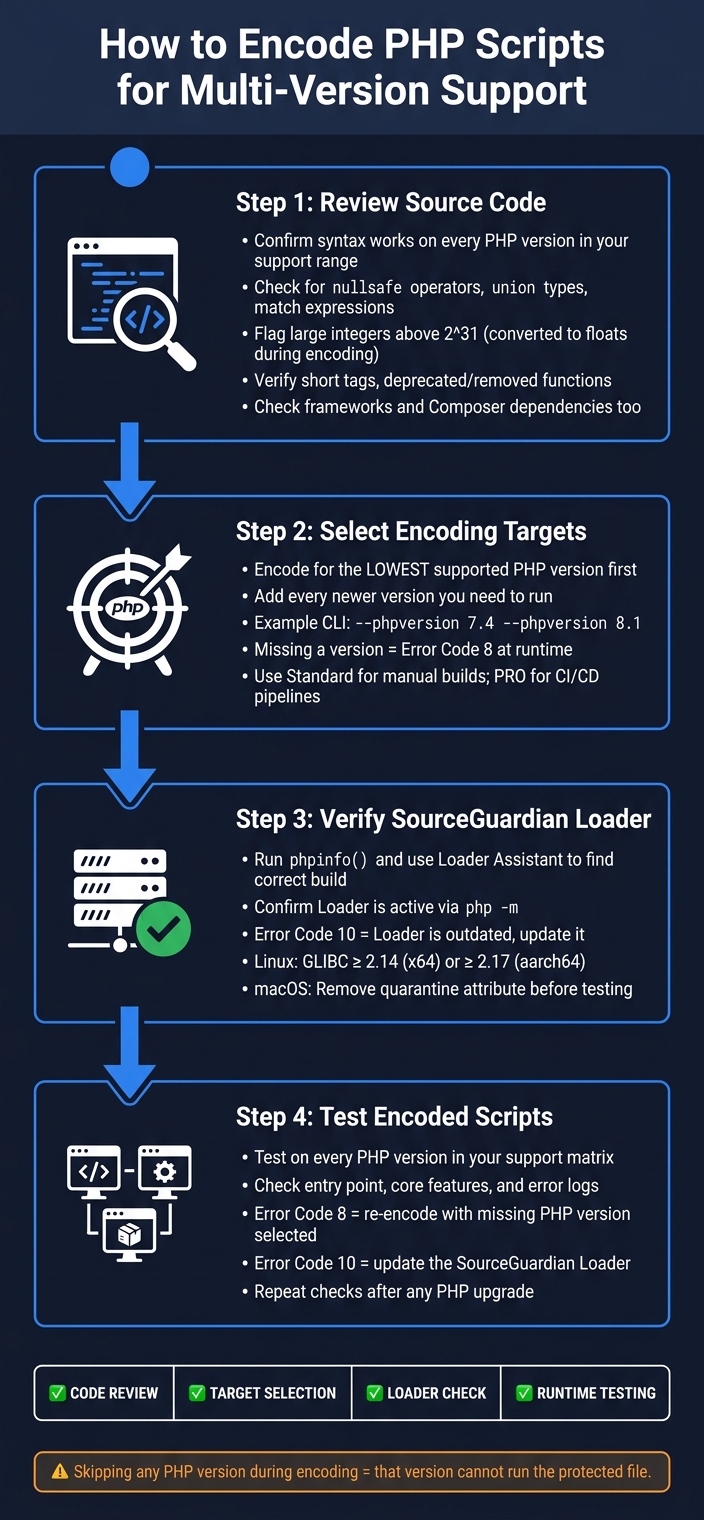
PHP Script Encoding for Multi-Version Support: 4-Step Process
Scriptcase - Learn how to encrypt your PHP applications
sbb-itb-f54f501
Quick check
| Area | What I confirm |
|---|---|
| Source | The code runs on every PHP version I support |
| Encoding | Every needed PHP version is selected |
| Loader | Each server has the matching Loader |
| Testing | The encoded app runs cleanly on each target version |
If I follow that release flow every time, I cut down version-related failures and avoid last-minute deployment problems.
Step 1: Review the source code before encoding
Make sure the source runs on every PHP version you plan to support. Encoding won't fix compatibility problems. SourceGuardian will stop the encoding process if it finds syntax or feature conflicts with the PHP version you picked, but it's much easier to sort those issues out in the source code first.
Choose the minimum supported PHP version first
Start with the lowest PHP version you need to support based on actual deployment needs, not what's most popular. Then document the full support range, like PHP 8.0 through 8.3.
For example, if your app uses current Laravel or Symfony releases that need PHP 8.0 or higher, trying to support PHP 7.4 could mean major refactoring. That's the kind of problem you want to spot now, not halfway through encoding.
Check syntax, functions, and language features across the target range
Once you've set the version range, review the code for anything that falls outside it. A few areas deserve close attention:
- Syntax your minimum version can't parse: Look for things like the nullsafe operator (
?->), union types, andmatch. If your minimum version is PHP 7.4, any of those will need to be changed before encoding. - Deprecated or removed functions: Check for functions that changed behavior or disappeared across your support range.
- Short tags (
<? ?>): If your code uses them, turn on short-tag support in SourceGuardian's advanced settings or use the--short-tagsoption. If you skip this, the encoded output may show up as plain text. - Large integers: Flag them early. SourceGuardian converts values above 2^31 to floats, and that can break strict types.
- PHP 8.2 and newer: Make sure any function listed in
disabled_functionsisn't needed at load time.
Don't stop with your own code. Check frameworks, third-party libraries, and bundled scripts too. Their Composer requirements should line up with your support range. Once the whole stack matches, you're ready to move to SourceGuardian target selection.
Step 2: Select SourceGuardian encoding targets
Once you've confirmed source compatibility, encode only the PHP versions you can support. SourceGuardian turns bytecode for each selected PHP version into one protected file, so one build can work across more than one server setup.
That said, there's a catch: if you leave out a PHP version, the protected file won't run on it. And loaders don't change that. A loader helps run an encoded file for a matching PHP version, but it doesn't expand version support on its own. So the encoding targets need to line up with every PHP version you plan to support. From there, map that support range to the versions you encode.
Encode for the lowest supported version and all required newer versions
Begin with the minimum PHP version you confirmed in Step 1. Then add each newer version your customers or your own systems need to run. In SourceGuardian's CLI, you can set target versions directly with --phpversion, and you can repeat that flag for each version.
If you're supporting PHP 7.4 and 8.1, for example, the build command would look like this:
sourceguardian_encoder --phpversion 7.4 --phpversion 8.1 -o build/protected src/
Picking versions this way keeps the build tied to your actual support matrix. After that, match every selected PHP version to the right loader before release.
Use a compatibility table to map versions, loaders, and source support
A table helps you spot gaps between source support, encoding targets, and loader needs. For a product that supports PHP 7.4 through 8.4, it might look like this:
| PHP Version | Source Code Compatible? | Included as Encoding Target? | Required SourceGuardian Loader |
|---|---|---|---|
| 7.4 | Yes (tested) | Yes | ixed.7.4.lin (Linux) |
| 8.0 | Yes (unit + integration) | Yes | ixed.8.0.lin |
| 8.1 | Yes (partial; one deprecated feature) | Yes (with fixes) | ixed.8.1.lin |
| 8.4 | Yes (after updating syntax) | Yes | Latest loader package |
The loader column is the main deployment checkpoint. Use SourceGuardian's online Loader Assistant to confirm the exact loader filename for each PHP version and platform. It's also smart to keep this table in version control and update it whenever you add a new PHP branch or upgrade SourceGuardian.
When to use SourceGuardian Standard or PRO
SourceGuardian Standard covers the core encoding workflow and comes with both a GUI and a CLI, which makes it a fit for manual release processes.
SourceGuardian PRO adds CI/CD integration and dynamic licensing support, which makes it a better fit for automated builds.
Step 3: Verify Loader support and test deployments
Once you've picked your encoding targets, the next job is to check the Loader and test the build where it will actually run. This matters because deployment issues usually come from a Loader mismatch, not the encoded file itself.
Confirm SourceGuardian Loader compatibility on each server
Development, staging, and production don't always move in lockstep. One server may already be on PHP 8.2, while another is still on PHP 8.1. That means each machine may need its own SourceGuardian Loader build.
A good example is a staging server on PHP 8.2 and a production server still on PHP 8.1. In that setup, you should verify the Loader on each server instead of assuming one setup covers all of them.
Run phpinfo() on the target server, then use the online SourceGuardian Loader Assistant to find the Loader build that server needs. It matches the right Loader build to the server setup.
After you install it, confirm the Loader is active. You can do that with php -m or by checking the phpinfo() output. If you see "Protected script's header is broken" (Error code 10), the Loader is older than the encoder version used for the file. In plain English: update the Loader first.
"Newer loaders run new and old encoded files. But old loaders will not run files encoded with SourceGuardian 14 even for PHP older than 8.2 ('broken header' error message may appear from an old loader)" - Alex, SourceGuardian
Test encoded scripts in development, staging, and production-like environments
Once the right Loader is in place, move on to runtime testing. The goal here is simple: run the encoded script on every PHP version you plan to support.
Start with the entry point. Then check core features and review logs for Loader errors or runtime warnings. This step helps you spot whether the problem is with SourceGuardian or with your app logic.
Logs are especially helpful here. They make it much easier to tell apart a Loader mismatch and an application bug. If the script says it was not encoded for that PHP version, that's Error code 8. The fix is to re-encode the file with that PHP version selected.
A couple of platform checks also matter:
- On Linux, make sure GLIBC meets the minimum version: 2.14 on x64 and 2.17 on aarch64.
- On macOS, remove the quarantine attribute from unpacked Loader files before testing with
xattr -d com.apple.quarantine *.
Conclusion: A repeatable process for multi-version PHP protection
Protecting PHP scripts across more than one PHP version gets a lot easier when you use the same four-step process every time: code review, target selection, Loader verification, and environment testing.
It starts with the source code. Review the code first, because encoding won't solve version mismatches or unsupported syntax.
Then set your encoding targets. Encode for the lowest PHP version you support, plus each newer version you need to run.
Once that's done, shift to deployment checks. Make sure the correct Loader is installed and active on every server. If you upgrade PHP later, check Loader support again and re-encode if your supported version range has changed.
You can turn that process into a simple release check:
| Step | What to confirm |
|---|---|
| Code review | Syntax and functions match the minimum supported PHP version |
| Target selection | All required PHP versions are selected |
| Loader verification | Correct Loader is installed and active |
| Runtime testing | Encoded scripts run successfully on each target PHP version |
Using the same release checklist each time helps keep encoded scripts working across the PHP versions you support.
FAQs
Do I need to re-encode to add support for a new PHP version?
Yes. To support a new PHP version, you need to re-encode your files.
Installing a new loader on the target machine isn't enough. Protected scripts contain bytecode compiled for the major PHP versions you picked during encoding.
To add support, use the latest version of SourceGuardian, open your encoding project, select the new PHP version, and re-encode the source files.
How can I tell if a problem comes from the Loader or the encoded file?
Use phpinfo() to see whether the SourceGuardian Loader shows up in your active PHP extensions. If it doesn’t appear there, the problem is with the loader setup.
If you get a broken header error, that usually means an older loader is trying to open a file encoded with a newer version. The fix is simple: install the latest loader version, then use the official SourceGuardian Loader Assistant to pick the right build for your OS, CPU architecture, and PHP version.
What should I check before encoding a PHP app for multiple versions?
Before encoding, check your setup and make sure you're on a supported PHP version. Run php -v to confirm.
You should also verify that your source code works with the PHP versions you plan to support, and that any required features, like short PHP tags, are turned on.
If you decide to support a new major PHP version later, go back to the original source and encode it again. After that, test everything in staging.